
How to Add Custom Bullet Point icons in Wix using Velo
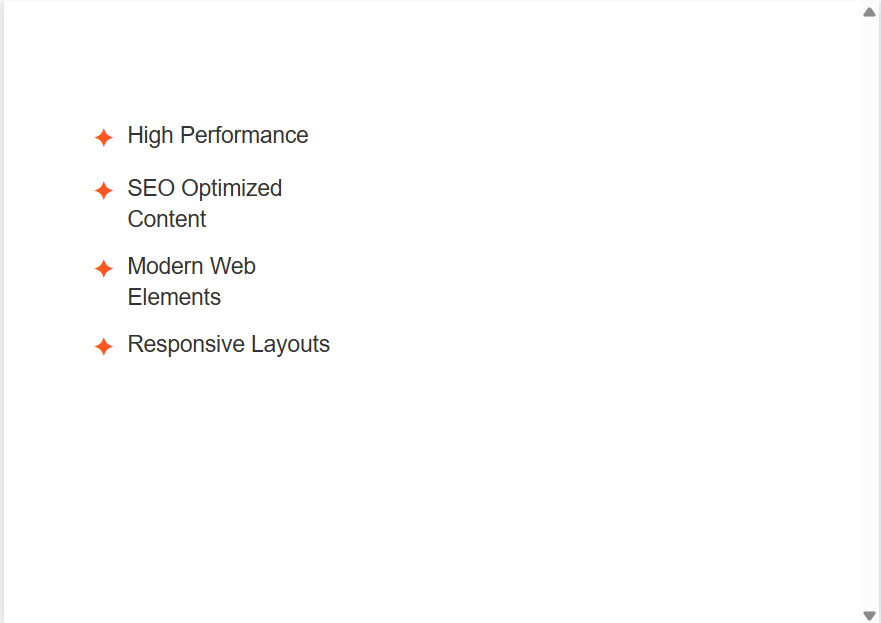
Custom bullet points are one of the most used formatting elements in web design. It allows users to send a powerful message in a limited space with a beautiful design. This article explains how you can achieve custom bullet point icons in Wix using the Velo Code. This method applies for both Wix Studio as well as Wix Editor.
The necessary code to achieve this effect is also included in the article. You can use the code directly in your Wix website. Please note that you do not need a premium plan to use this method.
Velo vs Drag-and-Drop Images – Which is better?
One obvious question in your mind must be, “Why can’t I just drag small image icons next to a regular text box in the Wix Editor to create custom bullets?”
The reason is responsiveness and SEO! While dragging and dropping images makes adding the effect easy, it is not a good choice for the main content of the website. As screen sizes change on mobile or tablet devices, manually placed floating images will easily misalign from your text lines, breaking the entire design.
Since text content is crucial for the search ranking of your Wix website, using Velo to inject clean HTML lists directly into the text DOM is beneficial for SEO compared to messy overlapping elements.
While Wix does try to keep grouped elements together using auto-layout, it is not guaranteed. Furthermore, using dozens of individual image elements might cause rendering and performance issues. If you want a clean, responsive list, using Velo to format the HTML is the way to go.
Using Velo to create Custom Bullet Point Icons
First, I will share the Velo code we are going to use to create the custom bullets. Then we will dive into its use, editing, and modification.
The following Velo code creates a clean HTML list using a custom image URL as the bullet icon. This template can be used to create any custom list effect.
JavaScript
$w.onReady(function () {
    setCustomBullets();
});

const iconUrl = "https://static.wixstatic.com/media/your_image_url_here.png";

const bulletItems = [
    "First amazing feature of your product",
    "Second incredible benefit for the user",
    "Third reason why they should buy now",
    "Fourth final point to seal the deal"
];

function setCustomBullets() {
    let htmlString = `<ul style="list-style: none; padding: 0; margin: 0;">`;

    bulletItems.forEach(item => {
        htmlString += `<li style="background: url('${iconUrl}') no-repeat left center; background-size: 20px 20px; padding-left: 35px; margin-bottom: 15px; font-family: Arial, sans-serif; font-size: 16px; color: #000000;">${item}</li>`;
    });

    htmlString += `</ul>`;

    $w('#bulletText').html = htmlString;
}
Alternatively, you can use following code that uses Text Emoji Icons instead of url, this has better performance.
$w.onReady(function () {
    createCustomBullets();
});

const listItems = [
    "High Performance",
    "SEO Optimized Content",
    "Modern Web Elements",
    "Responsive Layouts"
];
const customIcon = "✦";
const iconColor = "#FF5722";
const textColor = "#333333";
const fontSize = "18px";
const spaceBetween = "12px";

function createCustomBullets() {
    let htmlContent = `<ul style="list-style-type: none; padding-left: 0; margin: 0; font-family: sans-serif;">`;

    listItems.forEach(item => {
        htmlContent += `
            <li style="font-size: ${fontSize}; color: ${textColor}; margin-bottom: ${spaceBetween}; display: flex; align-items: center;">
                <span style="color: ${iconColor}; margin-right: 10px; font-size: 1.2em;">${customIcon}</span>
                <span>${item}</span>
            </li>`;
    });

    htmlContent += `</ul>`;

    $w('#bulletText').html = htmlContent;
}
With small changes across the code, you can create your own custom lists on a Wix website. The next section explains how the code works and where to replace and change the syntax to adopt the template for your use case.
The Code Breakdown and Modification
Let’s look at how the code works and how you can modify it. The first syntax –
JavaScript
$w.onReady(function () {
    setCustomBullets();
});
ensures that the code runs after the page fully loads and triggers the global variable “setCustomBullets”. This initiates the formatting of your text element.
The second part is most crucial, this is where you need to change the image source and set dynamic text –
JavaScript
const iconUrl = "https://static.wixstatic.com/media/your_image_url_here.png";
contains the exact URL of the image you want to use as an icon. You need to upload your custom icon to the Wix Media Manager, copy its URL, and replace it here inside the quotation marks.
Then we have your text data. The syntax
JavaScript
const bulletItems = [
    "First amazing feature of your product",
    "Second incredible benefit for the user",
    "Third reason why they should buy now",
    "Fourth final point to seal the deal"
];
holds the dynamic phrases that make up your list. You need to replace the placeholder text. Each bullet point should be inside quotation marks and separated by a comma. You can also add as many points as you like.
The code syntax
JavaScript
function setCustomBullets() {
    let htmlString = `<ul style="list-style: none; padding: 0; margin: 0;">`;

    bulletItems.forEach(item => {
        htmlString += `<li style="background: url('${iconUrl}') no-repeat left center; background-size: 20px 20px; padding-left: 35px; margin-bottom: 15px; font-family: Arial, sans-serif; font-size: 16px; color: #000000;">${item}</li>`;
    });
is super important. It dynamically builds the HTML structure for your text. We use an unordered list (<ul>), and a loop (forEach) wraps each of your text items in a list item tag (<li>). The inline CSS like background: url() applies your custom image, and padding-left: 35px makes room so the text doesn’t overlap the icon.
Finally, we have the code syntax
JavaScript
    $w('#bulletText').html = htmlString;
}
It connects the code to your website’s text element. When you add the text element to your website, change its element ID to “bulletText”.
It will assign the code to that text element and make sure that your website visitors see the formatted list with the custom icons.
How to Edit the Code
Now, as you understand how the code actually works, let me show you how to edit the parameters within the code to adapt it for your use case.
First, you need to change the image URL in
JavaScript
const iconUrl = "https://static.wixstatic.com/media/your_image_url_here.png";
Then change your list content in
JavaScript
const bulletItems = [ ... ];
Next, depending on the size of your custom icon, you might want to adjust the visual spacing. You can do this in the inline styles by changing the background-size: 20px 20px; to match your image dimensions, and adjusting padding-left: 35px; to give the text more or less breathing room.
Now for the most important part. Set the element ID of the text to “bulletText”. Without it, you can not show the custom bullets on the live website. You can use any element ID you want; make sure you change it in the code as well.
With these changes, you can show beautifully aligned custom bullet lists in your Wix Website.
Conclusion
Thanks for reading! I hope this walkthrough on how to create custom bullet point icons using Velo code will help you improve your Wix website design. Both Wix Editor and Wix Studio users can use this code in their websites.
For responsive layout purposes, using Velo to create this type of effect is much better. Manually placing images next to text often breaks spacing on mobile devices. However, Velo builds it directly into the HTML DOM of your website and will definitely keep your text and icons perfectly aligned every time.
If you like the article, make sure to rate us and drop a comment below to let us know your feedback, questions, or suggestions.